How to Turn a Still Image into an AI Video (Image-to-Video Prompts)
Image-to-video (I2V) lets you animate a single still - a product shot, character render or painting - into a coherent clip. Here are the five moves that work and the prompt patterns behind the best I2V results.
How to Turn a Still Image into an AI Video (Image-to-Video Prompts)
Text-to-video gets the headlines, but the workflow quietly taking over creators' feeds is image-to-video: start from a single still, a product shot, a character render, a painting, and prompt a model to bring it to life. It is faster to art-direct (you already control the look) and far more consistent than describing a whole scene from scratch. Here is how the best image-to-video (I2V) prompts in our catalog do it.
Why start from an image
When you hand a video model a first frame, you lock composition, character, lighting, and style up front. The prompt then only has to describe motion and camera, which is where video models are strong and where text-to-video usually drifts. That is the whole trick: image sets the what, prompt sets the how-it-moves.
The five moves that work
1. Animate one object, precisely
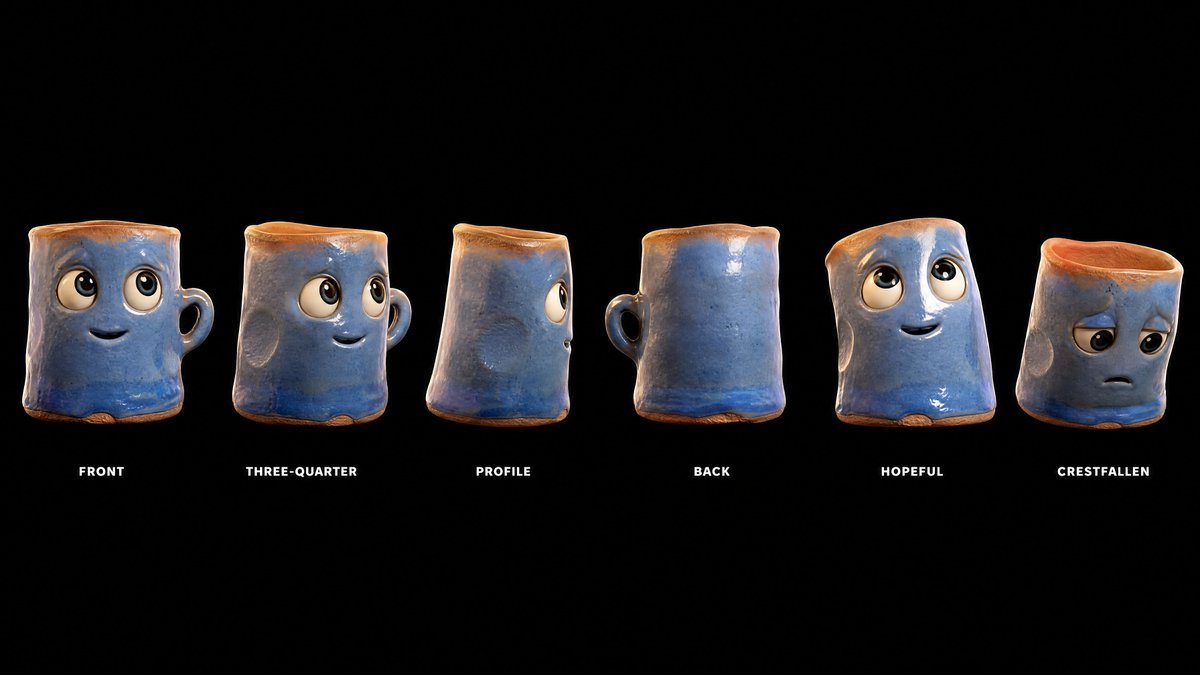
The cleanest I2V results animate a single subject with a described transformation. Seedance 2.5 Animation Prompt: The Clay Mug and the Porcelain Cup and the Pop-up Book Paper Dragon Animation both take a static object and give it one clear, physical motion instead of a busy scene.
2. Bring a character reveal to life
Feed a character render and prompt a dramatic entrance. Premium Cinematic Character Reveal Trailer and the Anime Streetwear Girl Motion-Graphics Reveal turn a single hero image into a trailer beat.
3. Add a locked or handheld camera
The camera choice sells realism. A 30-Second Locked-Camera Video Prompt keeps the frame still and lets the subject move, while the Japanese Summer Boyfriend Vlog (30s Handheld) fakes a real phone shot. Naming the rig is half the prompt.
4. Transform and morph
I2V shines at metamorphosis, one image becoming another. See the Ukiyo-e Kitsune Transformation and the surreal Office Animation.
5. Turn a poster into a teaser
Marketing use-case: animate a finished key art into a moving ad. MiniMax-H3 Cinematic Noir Bar Image-to-Video and Cinematic 3D Action Rescue Scene show the level.
Patterns behind the good ones
Which model
Browse the full video collection, or generate a still and animate it end to end in Create.
Related Articles
- The Best Ideogram Prompts
Oct 13, 2026 · 7 min read
- 最佳Ideogram提示词
Oct 13, 2026 · 7 min read
- Die besten Ideogram-Prompts
Oct 13, 2026 · 7 min read
- Los Mejores Prompts de Ideogram
Oct 13, 2026 · 7 min read
- Les Meilleurs Prompts pour Ideogram
Oct 13, 2026 · 7 min read